 Raznos
Profile: your services, ratings and notifications
Here you connect services, see ratings in each of them and set up alerts
Ratings in all services at once
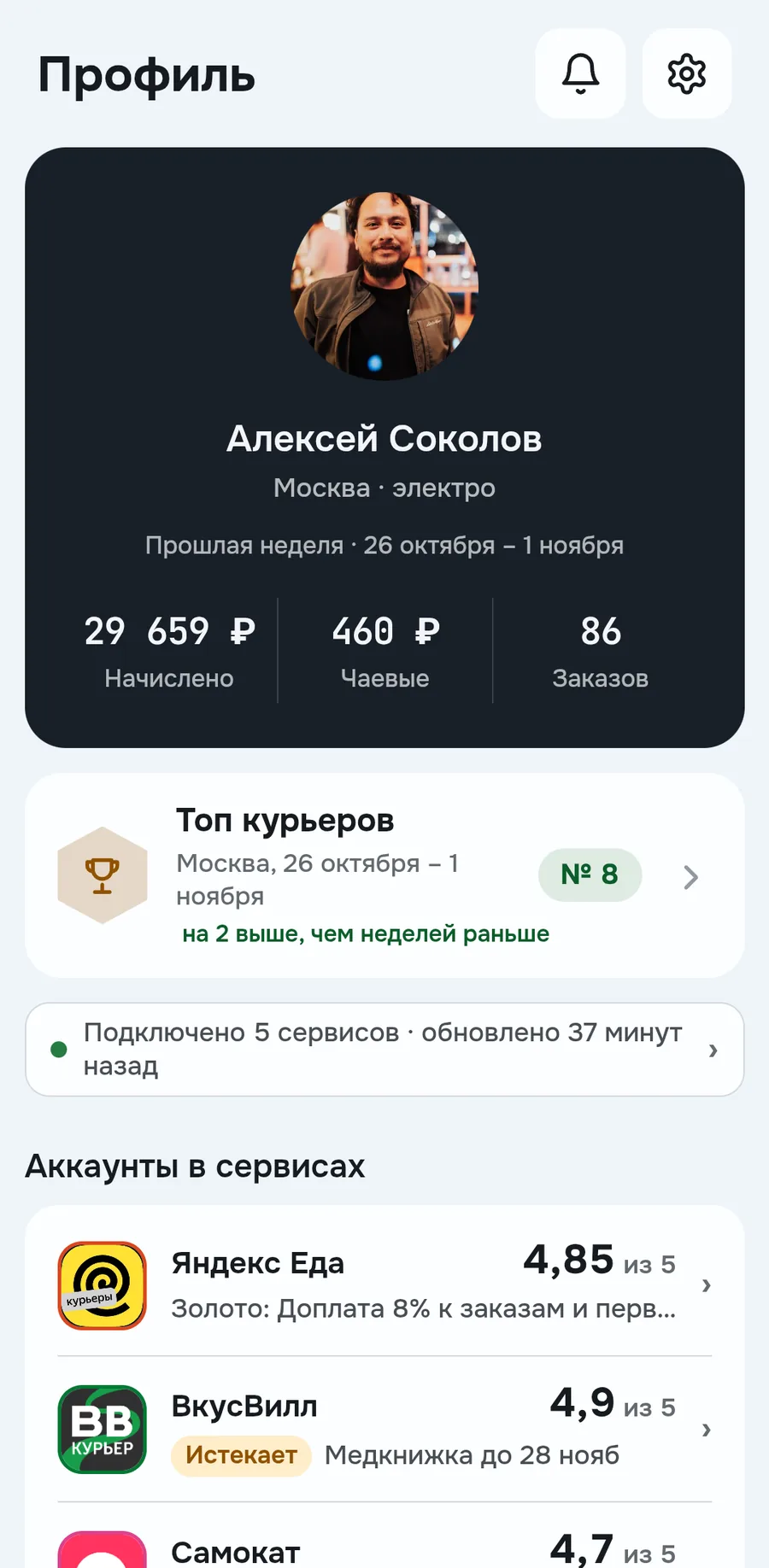
Here you see how things are in each service. The Service accounts block has a line per service, on the right the rating on its scale, for example 4,85 of 5 for Yandex Eats
Under the service name, your level and what it gives, for example Gold with an 8% bonus on orders. Or a document that's about to expire. If a service has a limit, there's a bar under the line. The Risk and Suspended labels appear when the service warns about a problem
The dark card on top shows last week's result: accrued, tips and orders. Below it, your place in the top couriers of your city
How to connect your services
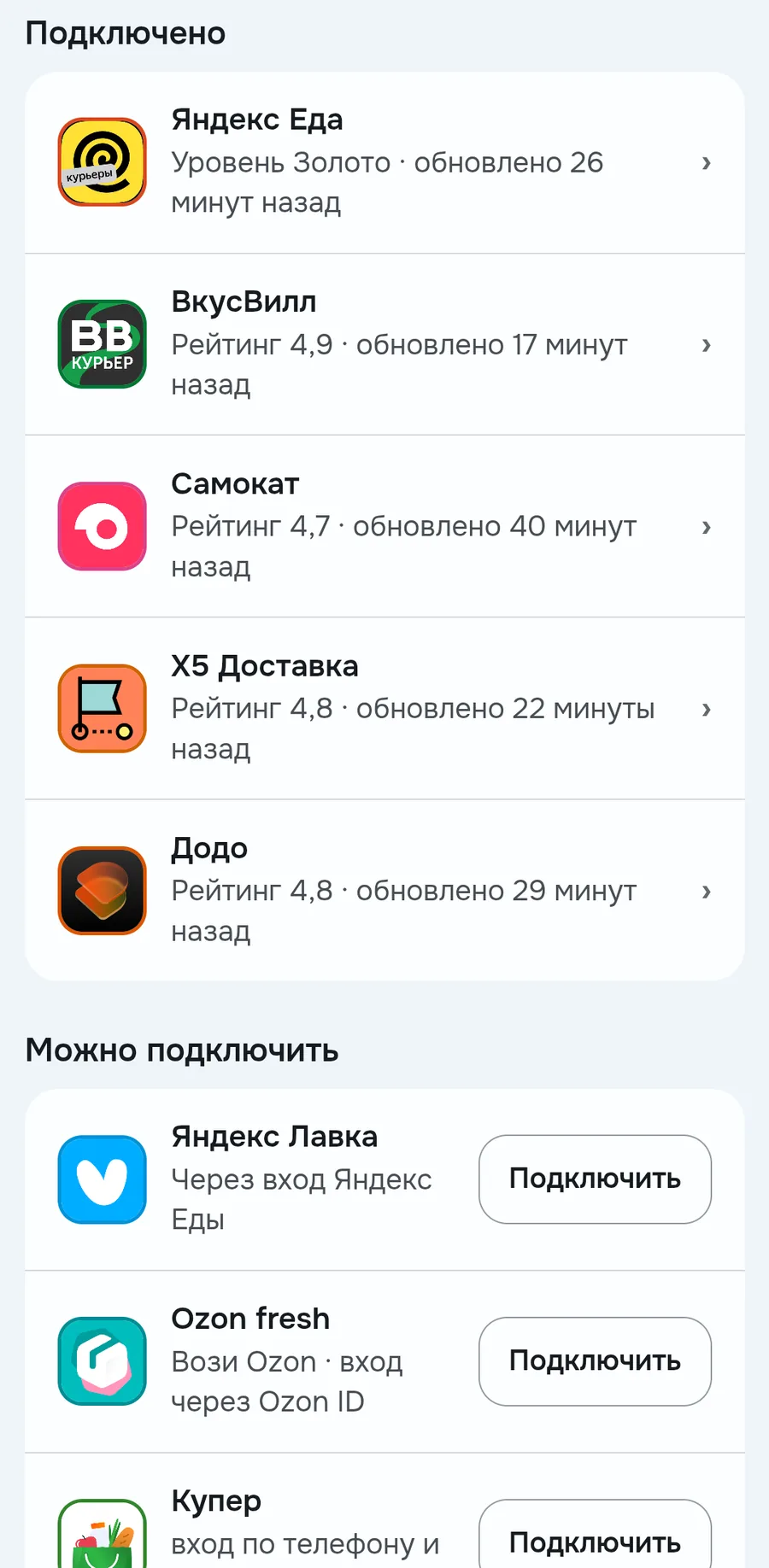
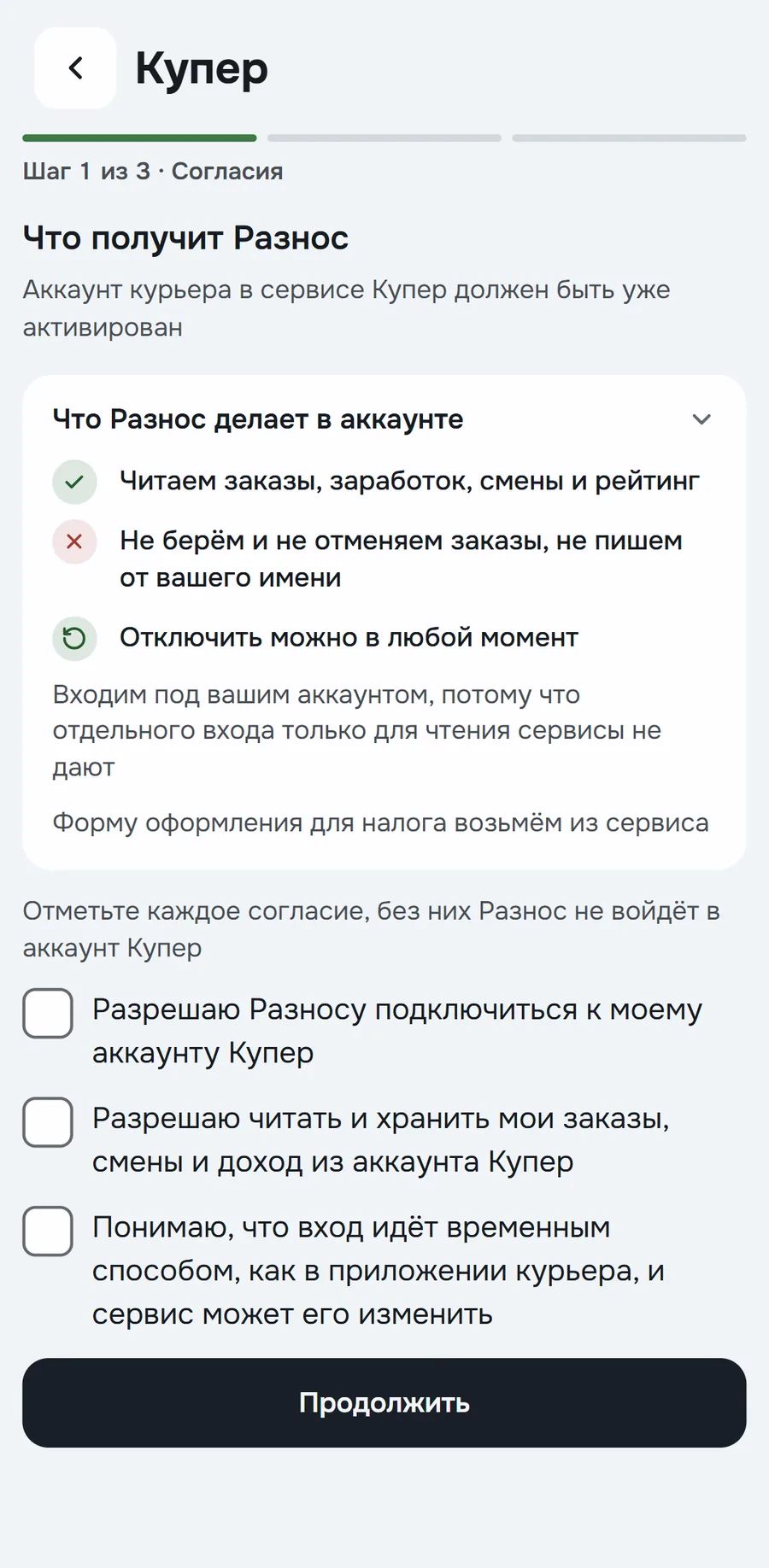
Connect your services, and Raznos will gather your earnings, orders and ratings from them. The Connected line in Profile leads to My services. There's also an Available to connect block with the other services
Connecting takes three steps right in the app. First comes a screen on what Raznos does in the account, the full list is in Where the data comes from. Next you sign in to the service account, like in its courier app, and Raznos loads your history. You need an active courier account in this service
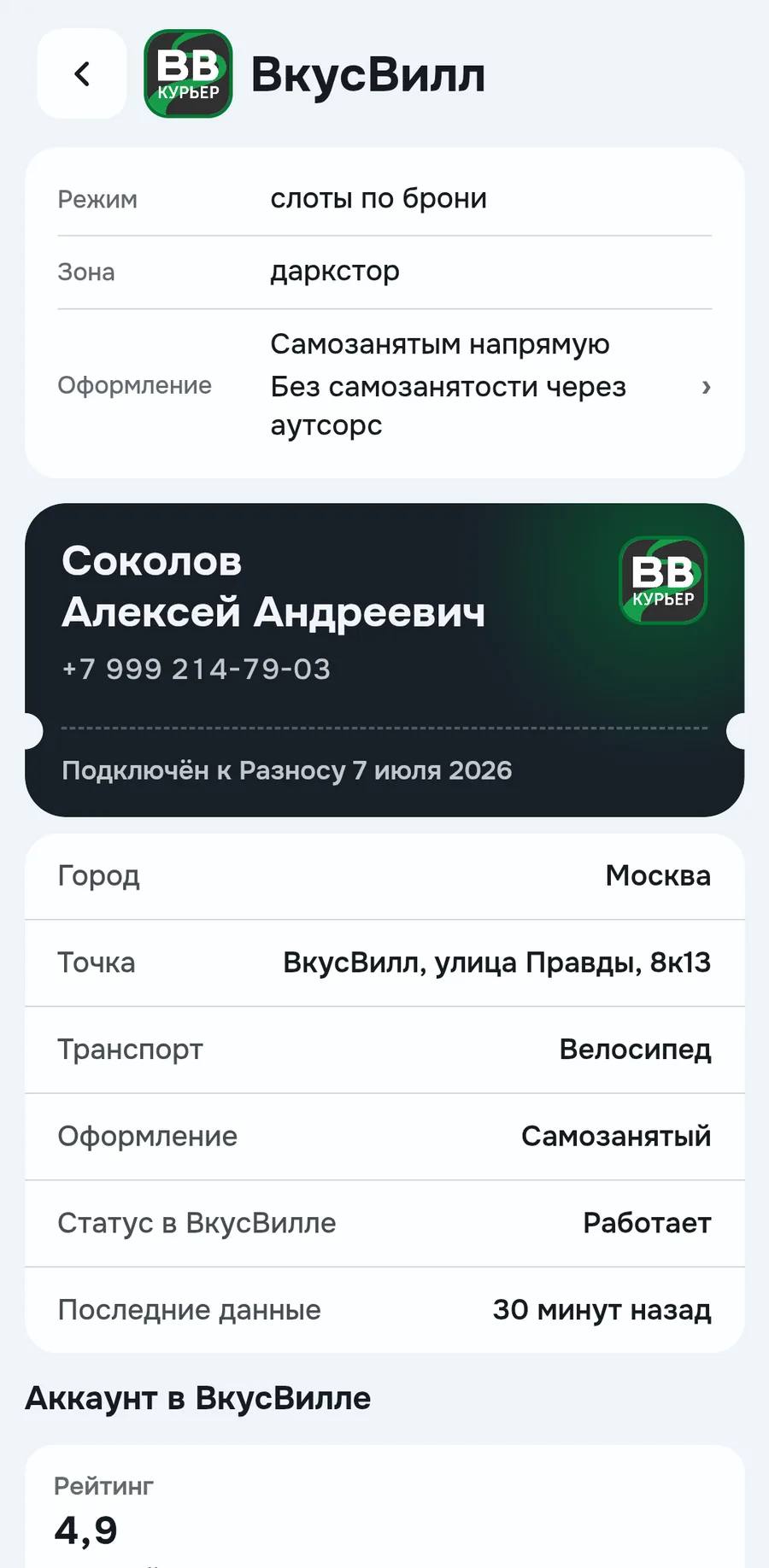
A connected service has its own screen: city, location, transport, registration and when the latest data came in. Below, rating, documents and the service's tasks. You can disconnect the service right there, any time
Notifications you choose yourself
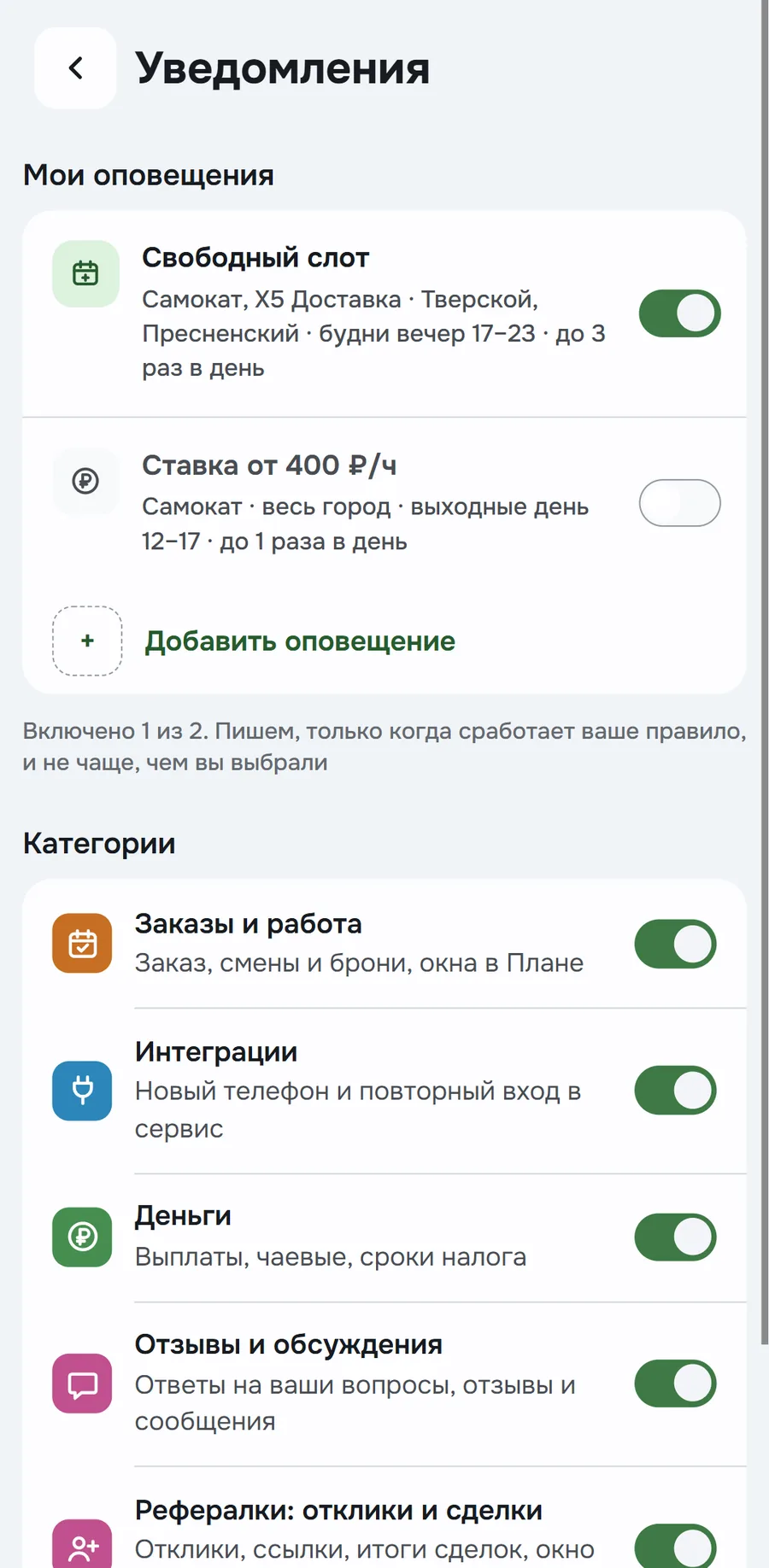
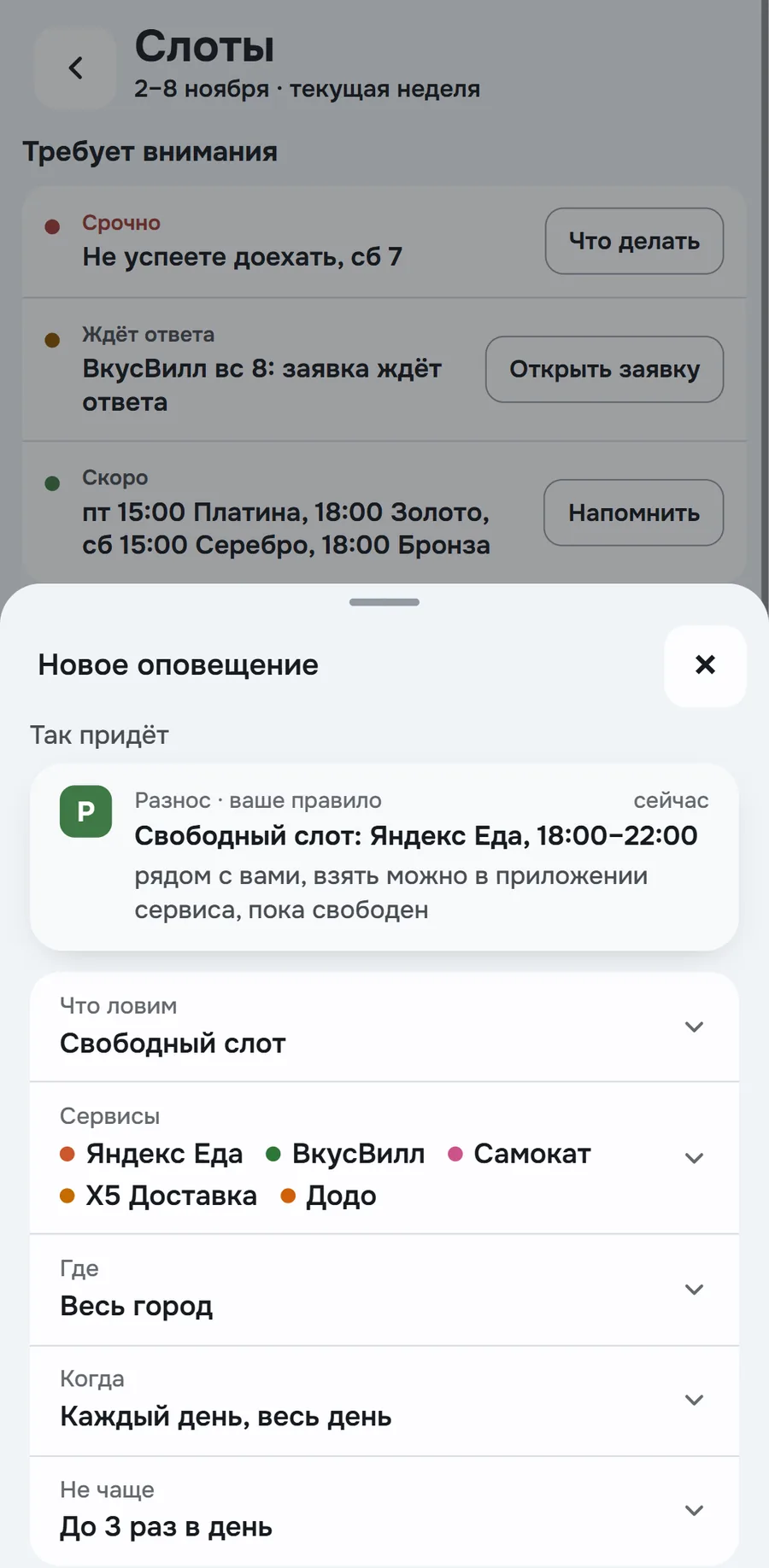
Set a rule, and Raznos will message you only when it triggers. You can catch free slots, high demand in a district, service bonuses and tasks, high hourly income and weather-driven demand
The easiest way to create an alert is from the screen you're looking at. The Notify bell is in Slots under the filters, by a district on the Where it pays more map and by an hour on the By hour screen. It fills in that screen's conditions, you just tap Turn on alert
All rules are in the My alerts block. You can create up to 5 and turn them on one by one. Below are categories with toggles. Service promos come only if the Marketing category is on
Documents and tasks in services
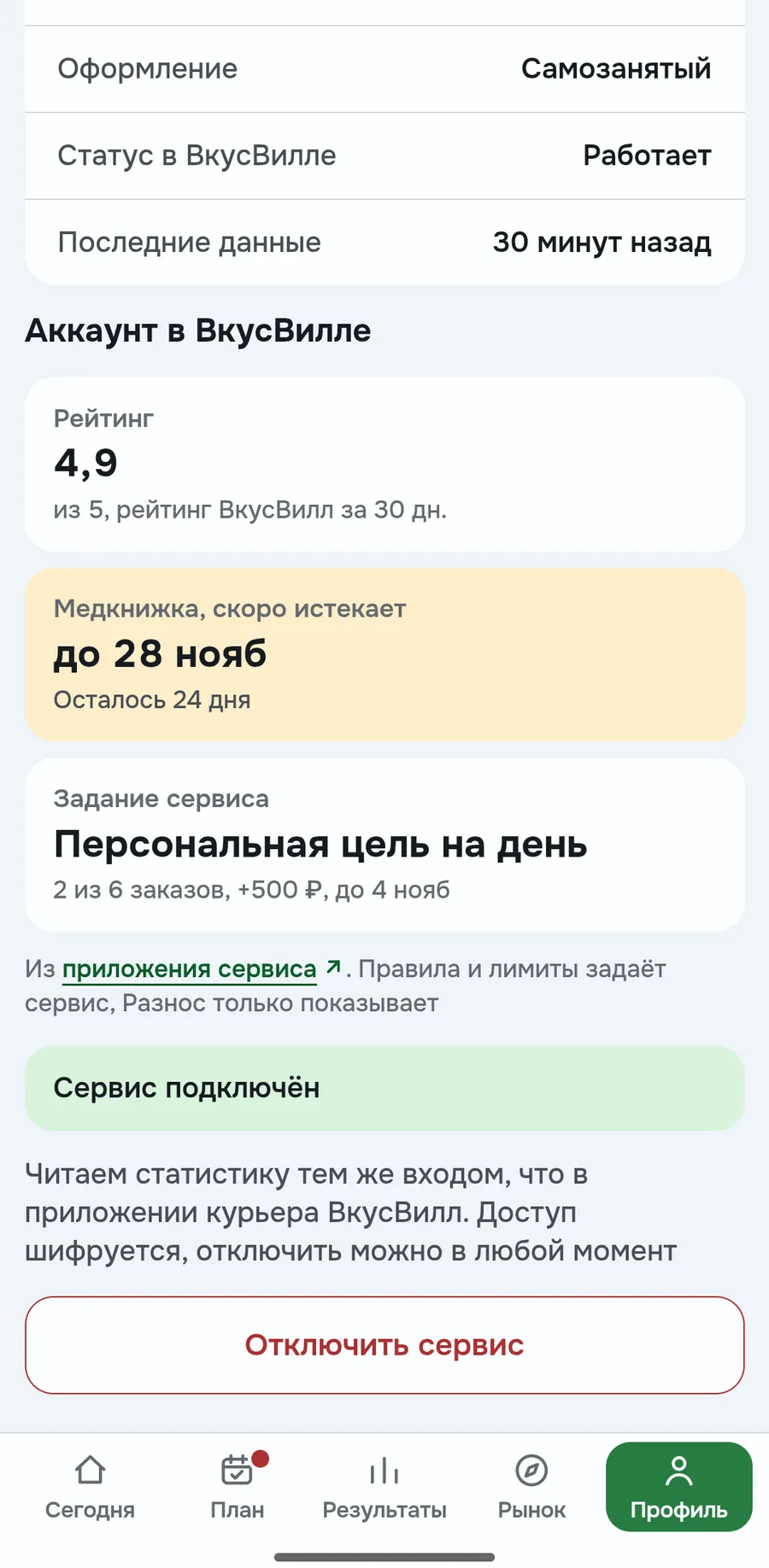
Tapping a service line opens its screen with rating, documents and tasks. If a document has an expiry date, for example a health certificate, Raznos shows in advance how many days are left
Below are the service's tasks, for example a goal for the day with a bonus for completing it
Anonymity and public profile
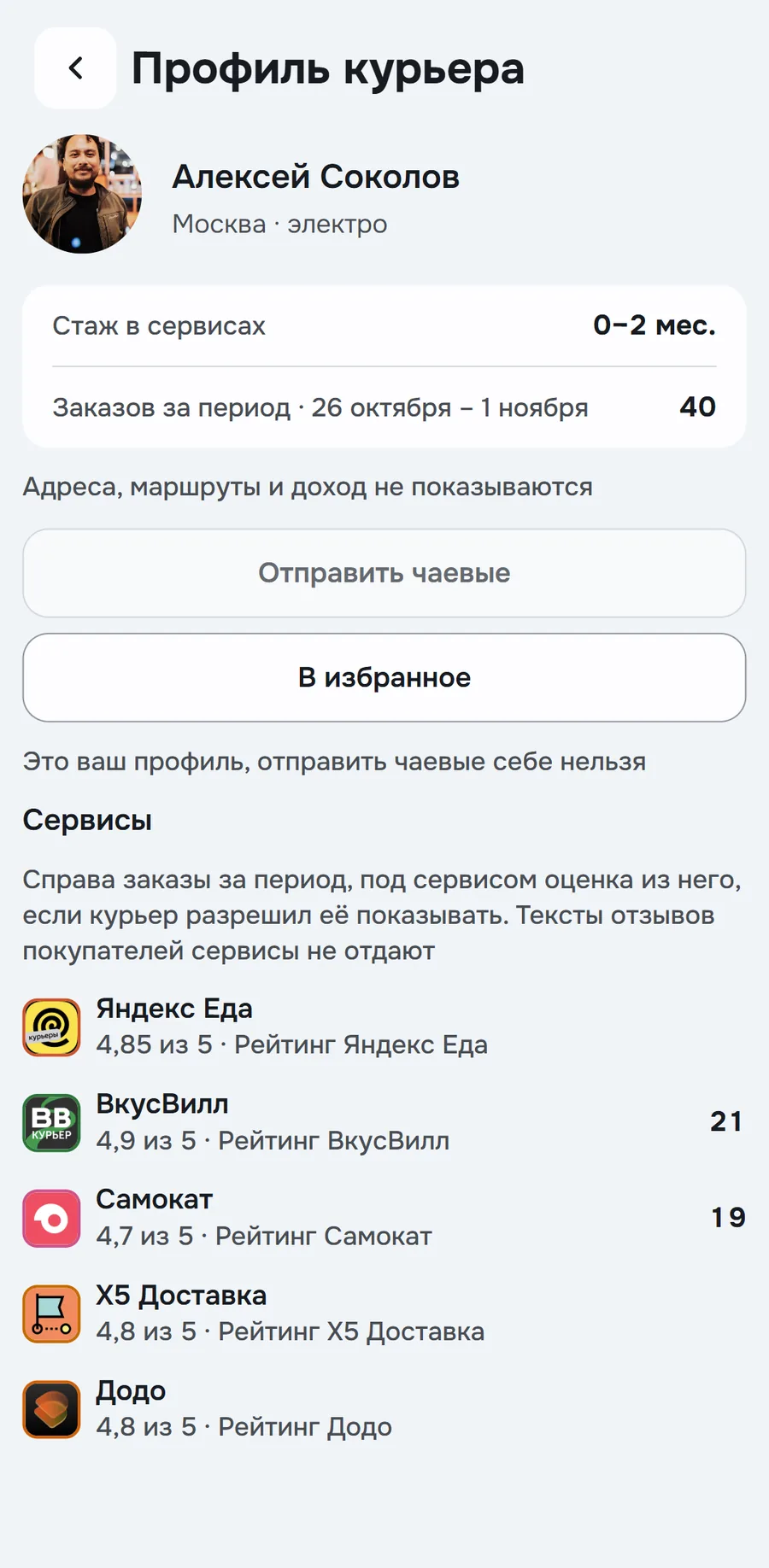
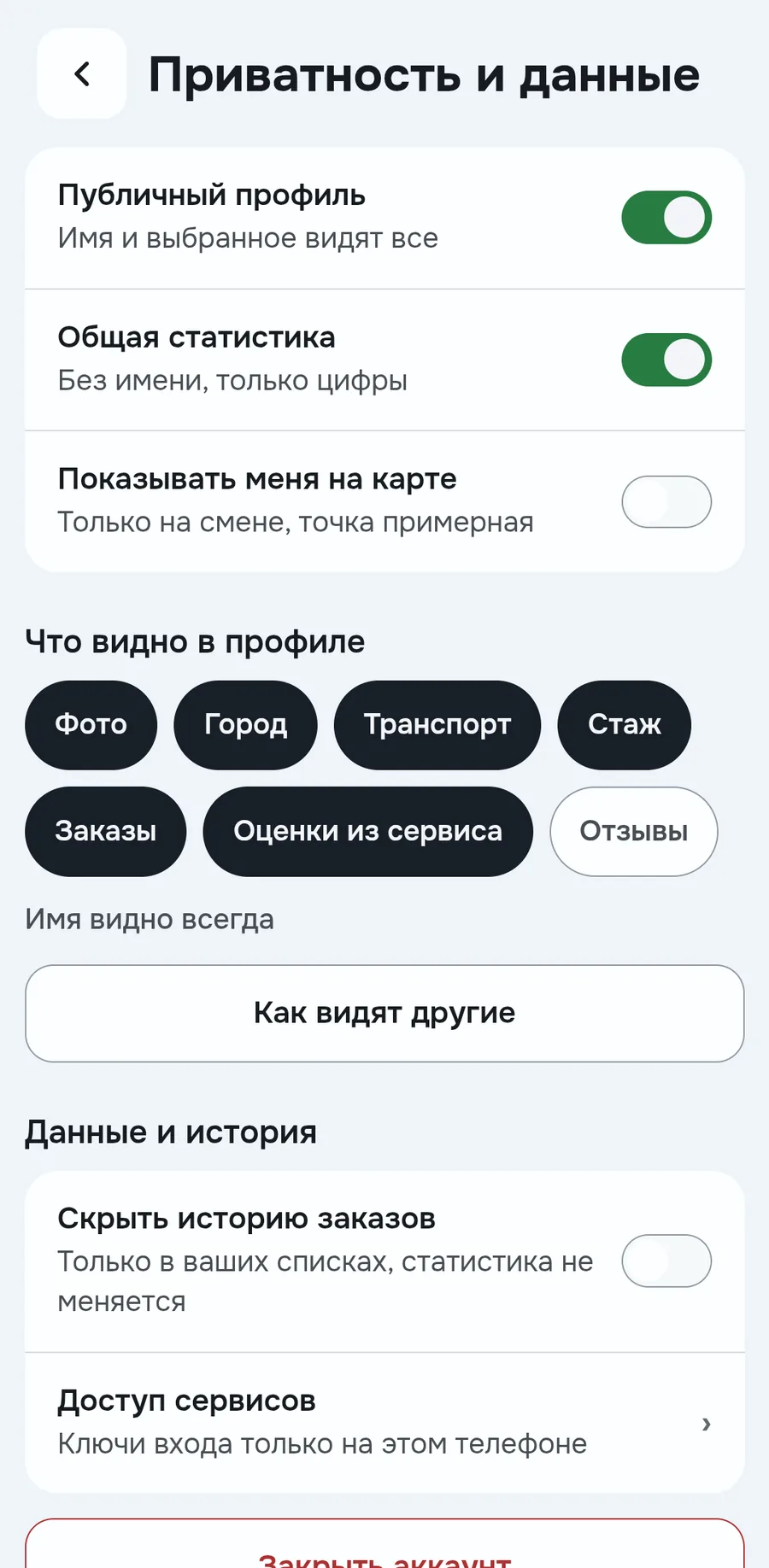
By default you're anonymous. While your profile is closed, others see a nickname instead of your name and approximate numbers, for example 50 to 100 orders. You can open your profile if you want to show your experience
The Public profile toggle is in the Privacy line. What's visible chips: photo, city, transport, experience, orders, ratings from services. An open profile shows your name and exact numbers. Addresses, routes and income aren't there. You can check what others see with the How others see it button
Service reviews are always signed with a nickname, even if your profile is open
Show your experience to an employer
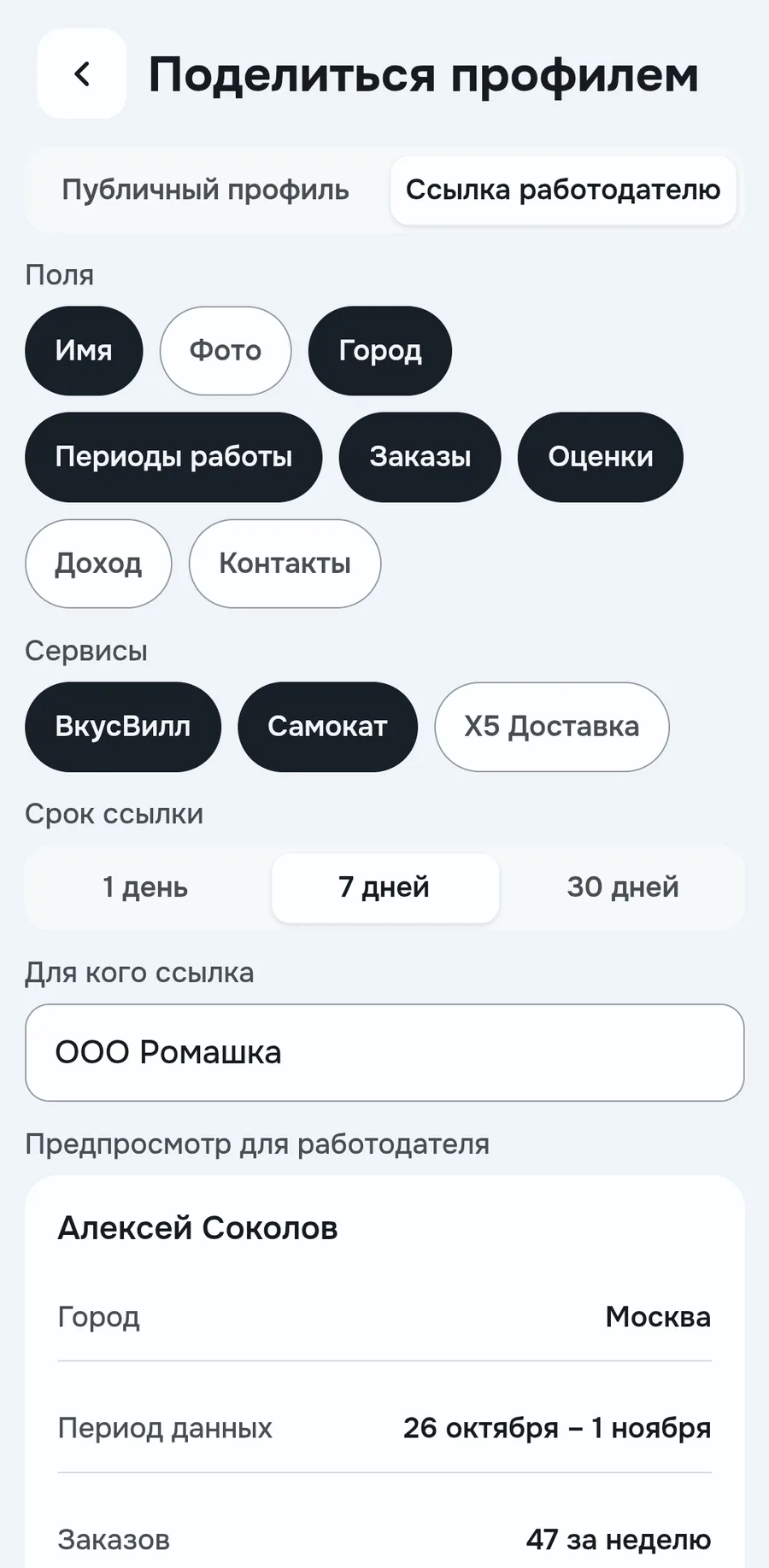
You can show your experience to a new employer with one link. In Profile, the Share profile line, Link for an employer tab. You choose fields, services and link expiry: 1, 7 or 30 days
At the bottom there's a preview, exactly what the employer will see. The link works even if your profile is closed, but it doesn't open the profile itself
How the numbers are calculated
- Profile week
- the last full week, Monday to Sunday. The card switches to the new week on Monday
- Accrued
- same as in Results, for the same week
- Place in the top
- your position among couriers of the city. The city of an order is where you picked it up
- Limit bar
- how much of the service's limit is already used. Green while all is calm. Amber when the limit is close. Red when it's exceeded
Where the data comes from and what others see
Ratings, levels and document expiry dates come from the services themselves. Next to them you see when the data was updated
Raznos reads orders, earnings, shifts and ratings. It doesn't take or cancel orders, doesn't book shifts, doesn't withdraw money and doesn't write on your behalf. Service sign-in keys are stored only on your phone
Others see only what you opened in Privacy. There you can also hide yourself from the courier map. If you close your account, your profile and reviews disappear for everyone right away
FAQ
Why the week card doesn't show the same numbers as Today
The card shows the last closed week. The current one appears here on Monday
Do others see my income
No. Only you can show it, for example in the link for an employer
Why a service has no rating
Some services don't share it. Then instead of a number it says No data from the service. Raznos doesn't make up ratings
What happens if I disconnect a service
New data stops coming in, the history stays. You can connect again any time
Numbers on the screens are examples, the app will show yours