 Raznos
Today: earnings and shift for the day
Here you see how much you earned today, what's next on your shift and when the money comes
How much you earned today
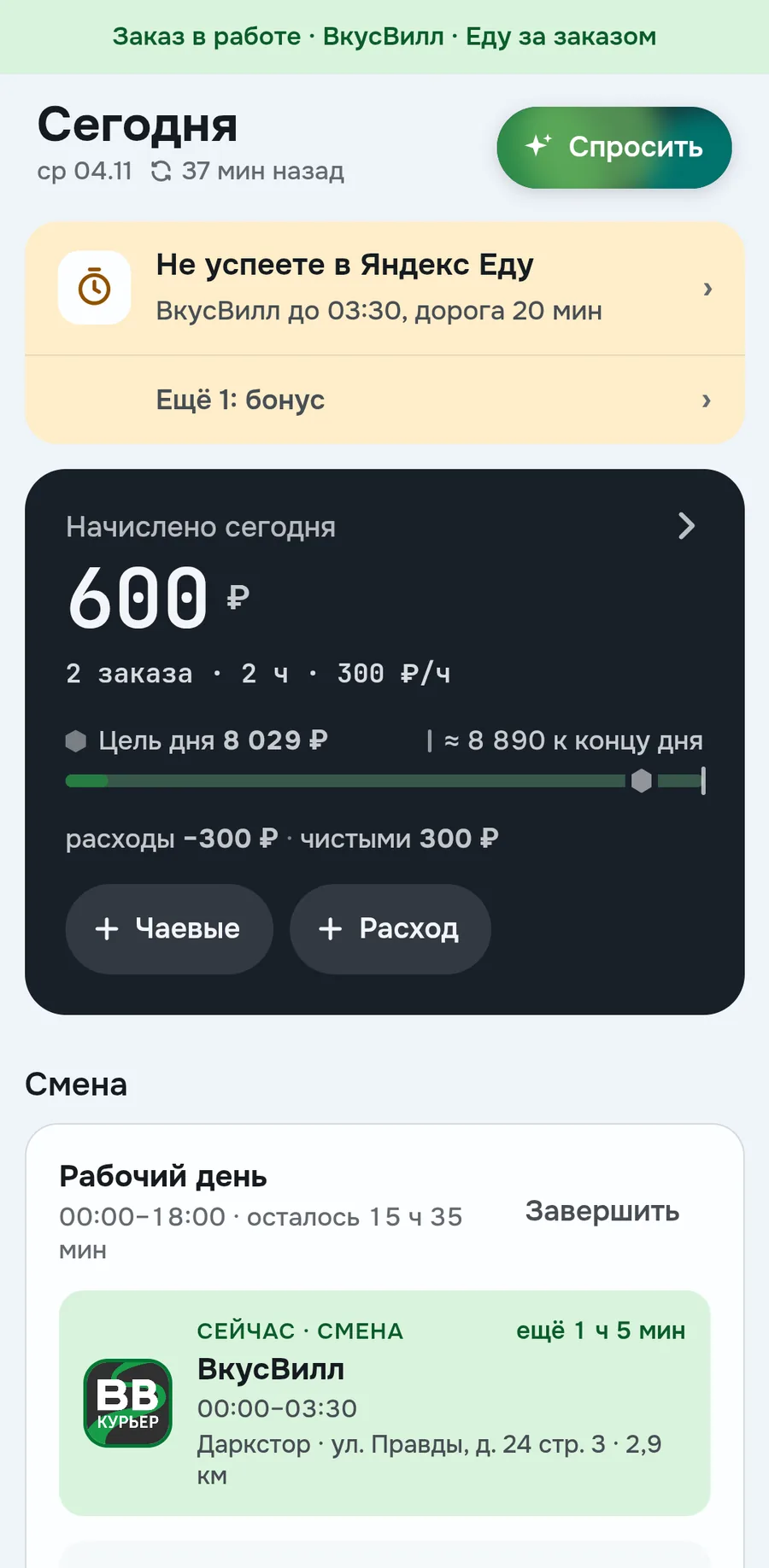
The main number of the tab: how much the services accrued today. Next to it orders, hours and hourly income. Below, a progress bar to the daily goal with an evening forecast and the Net total
Tapping the card opens the day sheet. The Tips and Expense buttons open amount entry right away
Above the card there's a line about what matters right now. For example, You will not make it to Yandex Eats, if the trip from your shift doesn't fit before the booking (more). When all is calm, it shows the number of services online
Last week's result
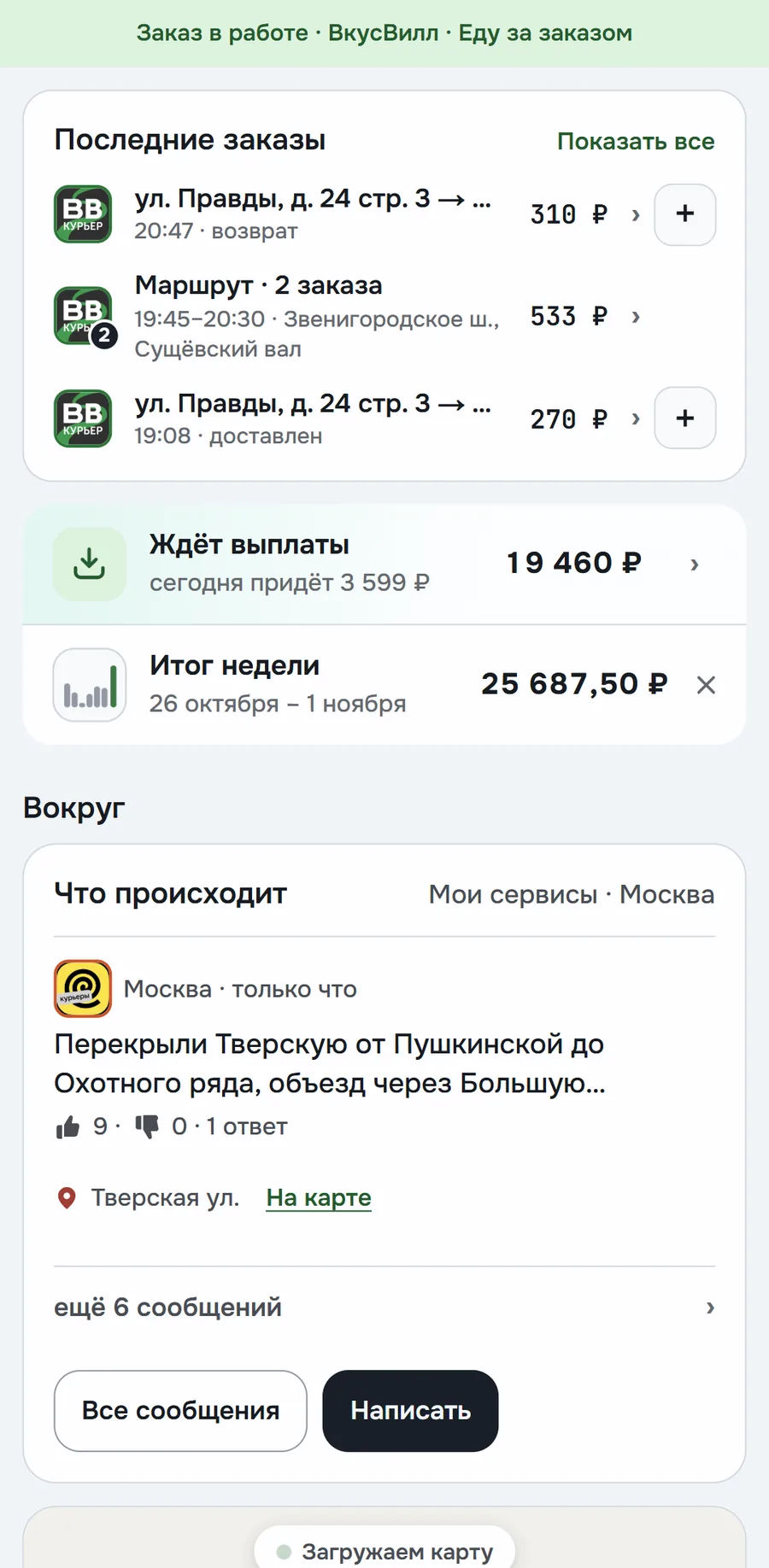
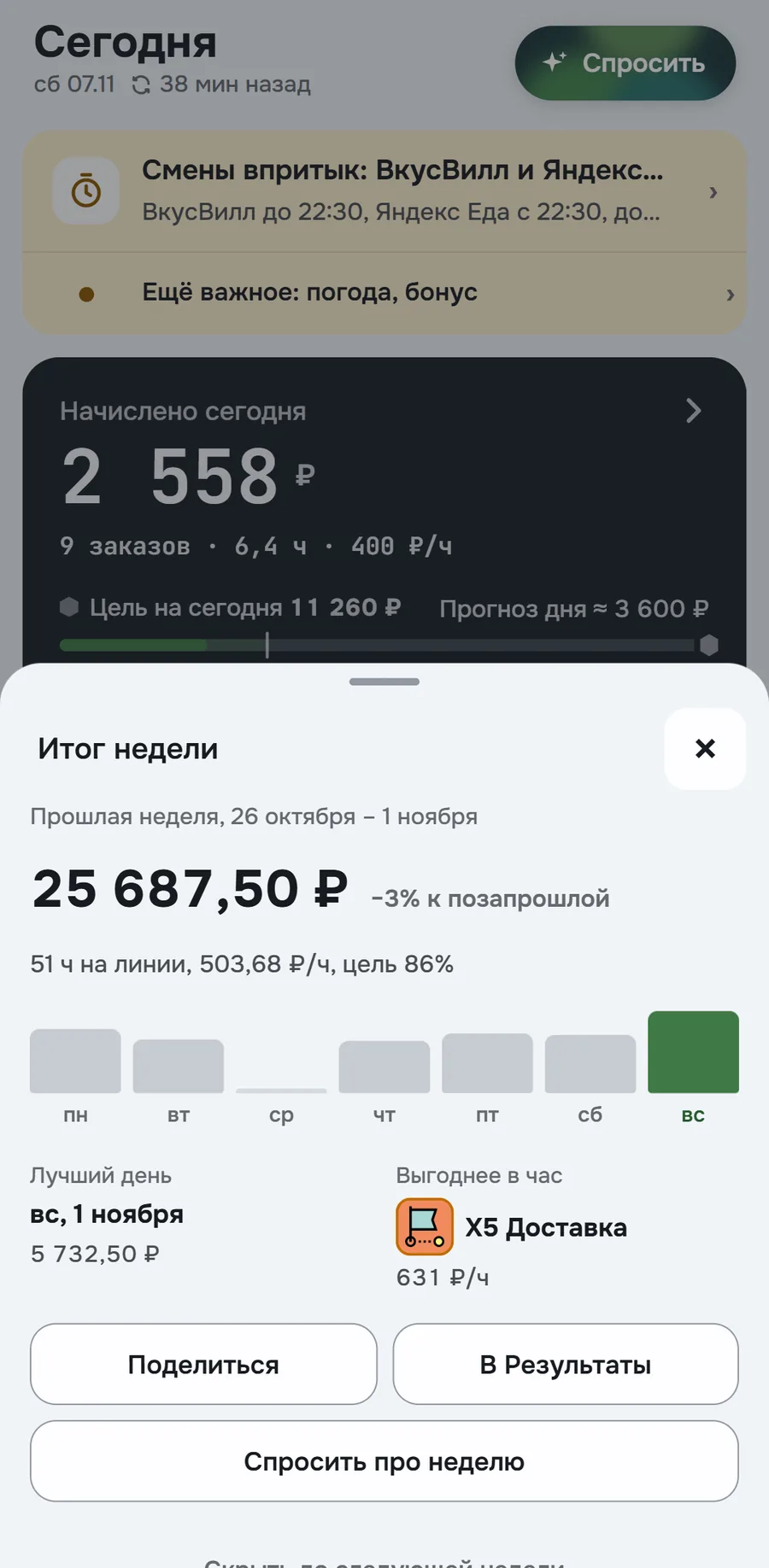
At the start of the week you see how much you made last week. The Week's result line is below recent orders, next to the Awaiting payout line
Tapping opens a sheet: the total, comparison with the week before last, bars by day, the best day and the service with the most per hour. You can share the result as an image or go to Results. The cross hides the line until next week
Current and next shift
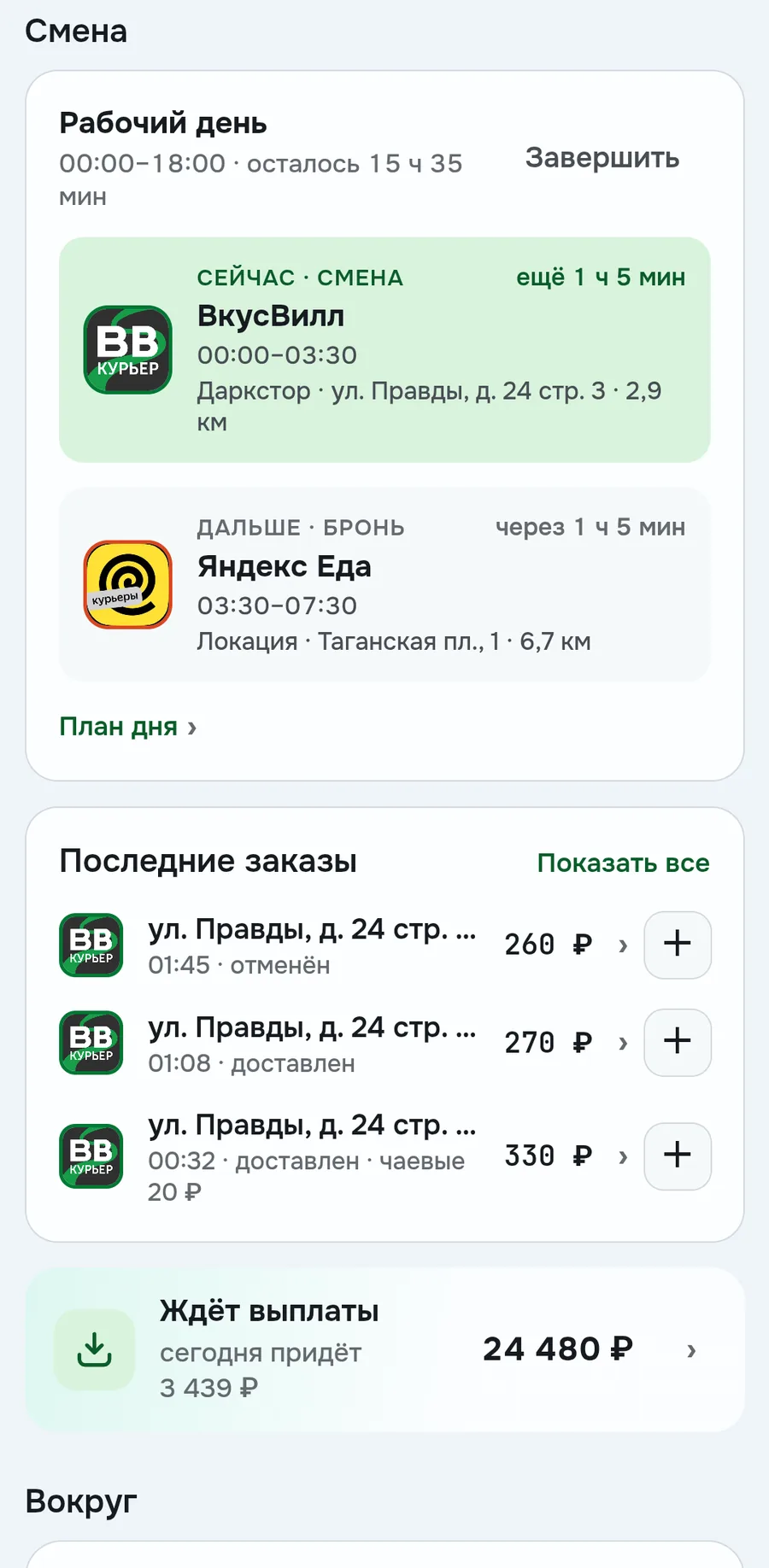
The Shift block shows where and when to work next. On top, your workday and how much of it is left. Below, the current shift and the next booking (what a booking is). Each shift has the address of the location and the distance to it
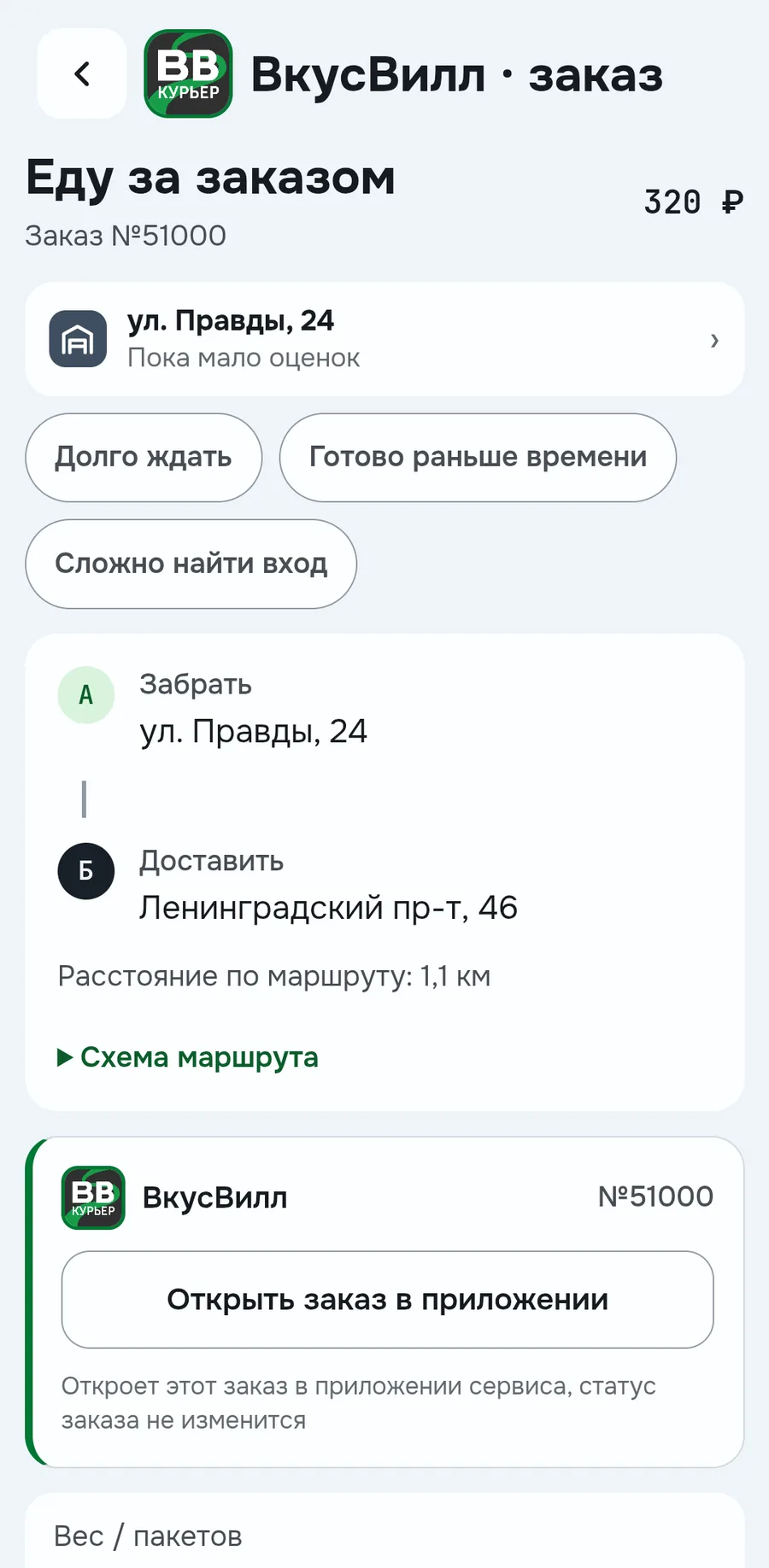
While you're on an order, a strip like VkusVill · On the way to pick up stays at the top of Today. Tapping it opens the order: stage, amount, where to pick up and where to deliver. At the pickup point you see marks from other couriers, for example Long wait
The End button ends the day in Raznos, not in the services. First it shows what's still left for today
Order history and payment status
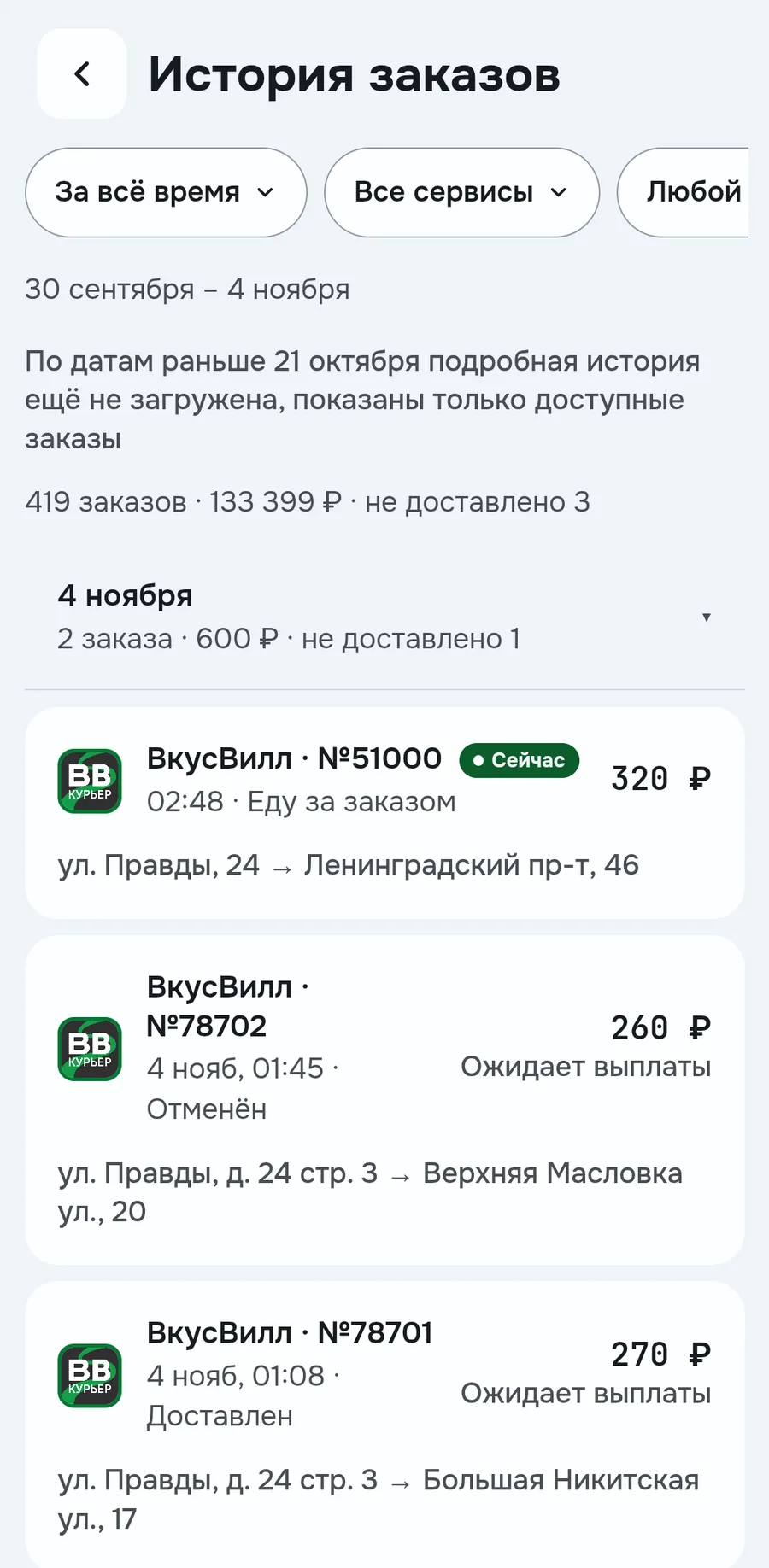
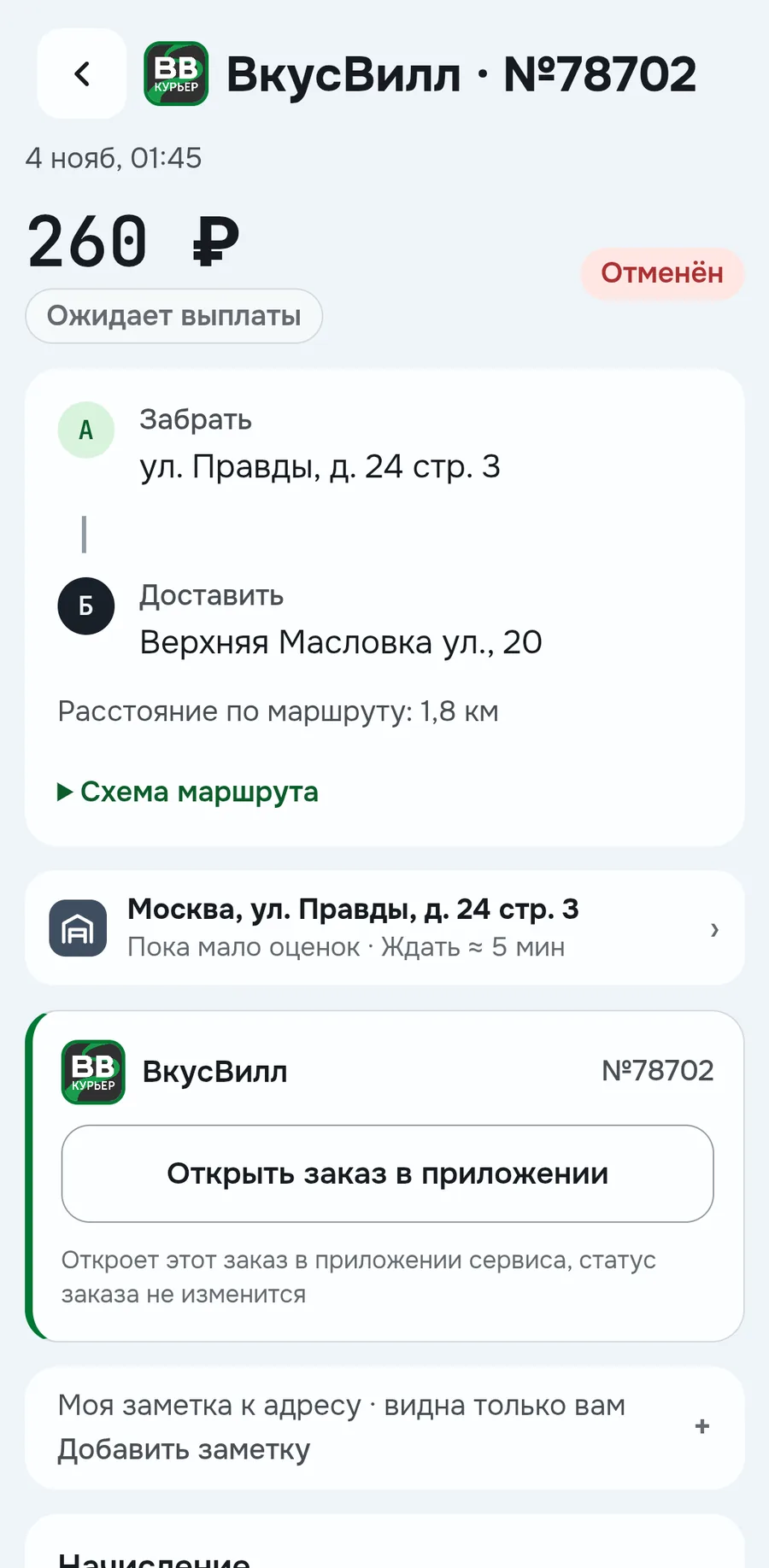
Each order shows its status and what's up with the money. The Recent orders block has fresh orders with status and amount. The Show all button opens the history of all services with filters by period, service and status
An order has two statuses: of the order itself and of the payment. An order can be canceled, and the money for it still awaits payout. The order card has My note for the address, for example the intercom code. There you can also add tips, an expense, a review or a note
How much the services still owe
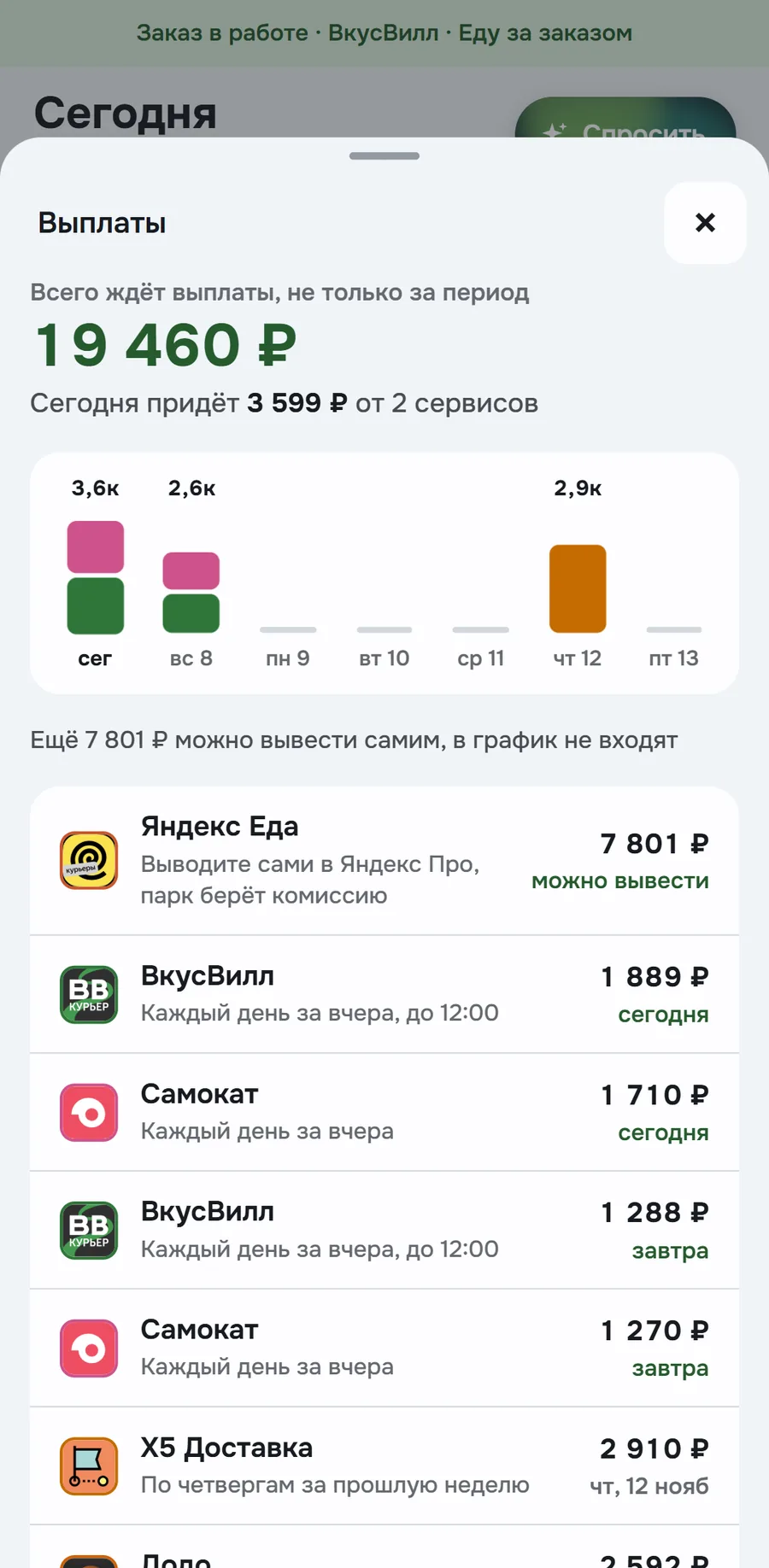
The Awaiting payout line shows how much the services still owe, tapping opens a sheet with dates. More about payouts in Results
How much is left after expenses
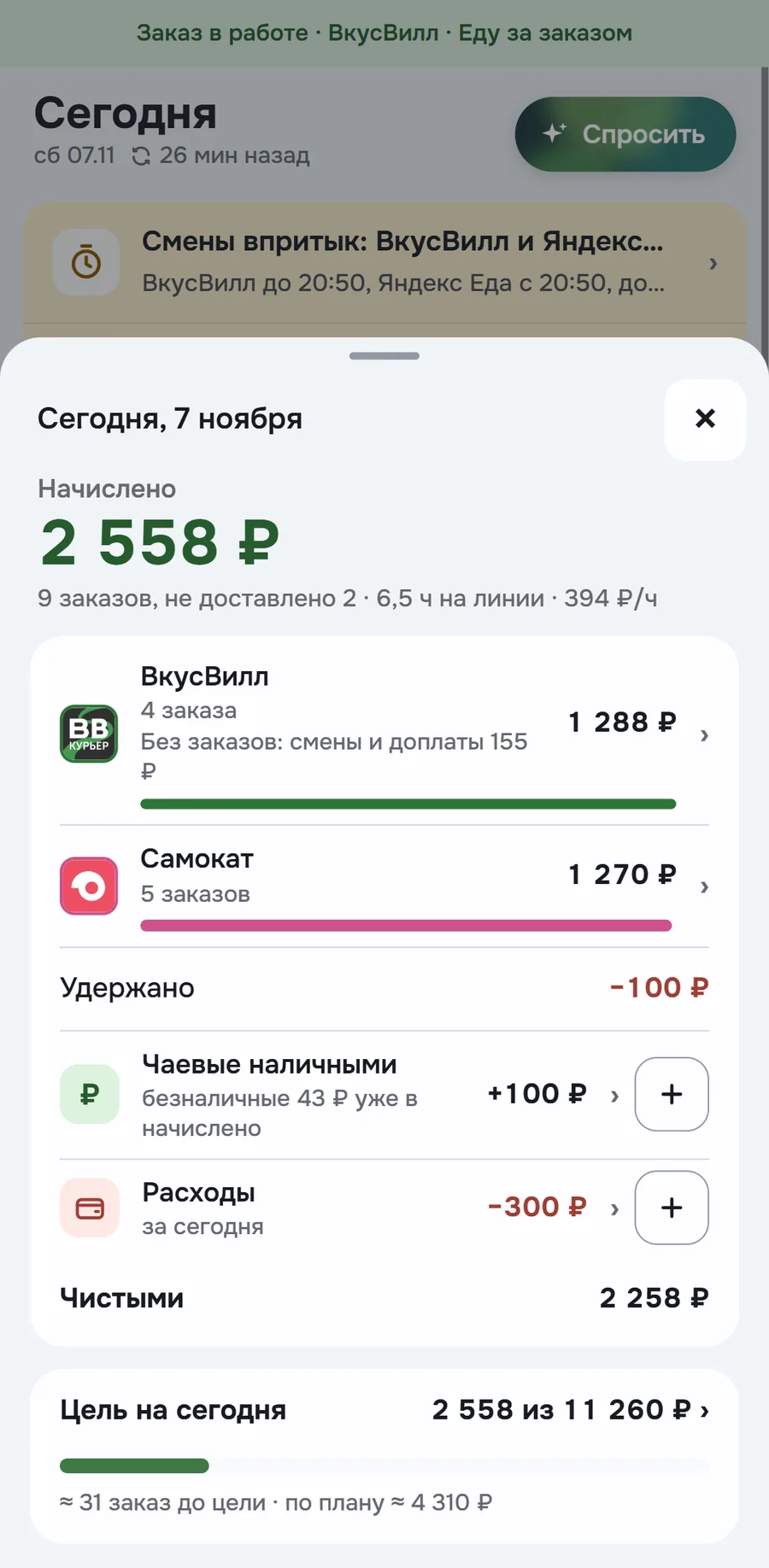
The day sheet shows how much is left after deductions and expenses. It opens by tapping Accrued today: on top the total, orders, hours and hourly income. Below, each service separately, including pay for shifts without orders
Then Deducted by service, cash tips and your expenses. You add tips and expenses right here. At the bottom the Net total and how much is left to the daily goal
How to enter expenses is explained in Results. Expenses and cash tips change only the Net total. What the service accrued stays as is
Map of couriers nearby
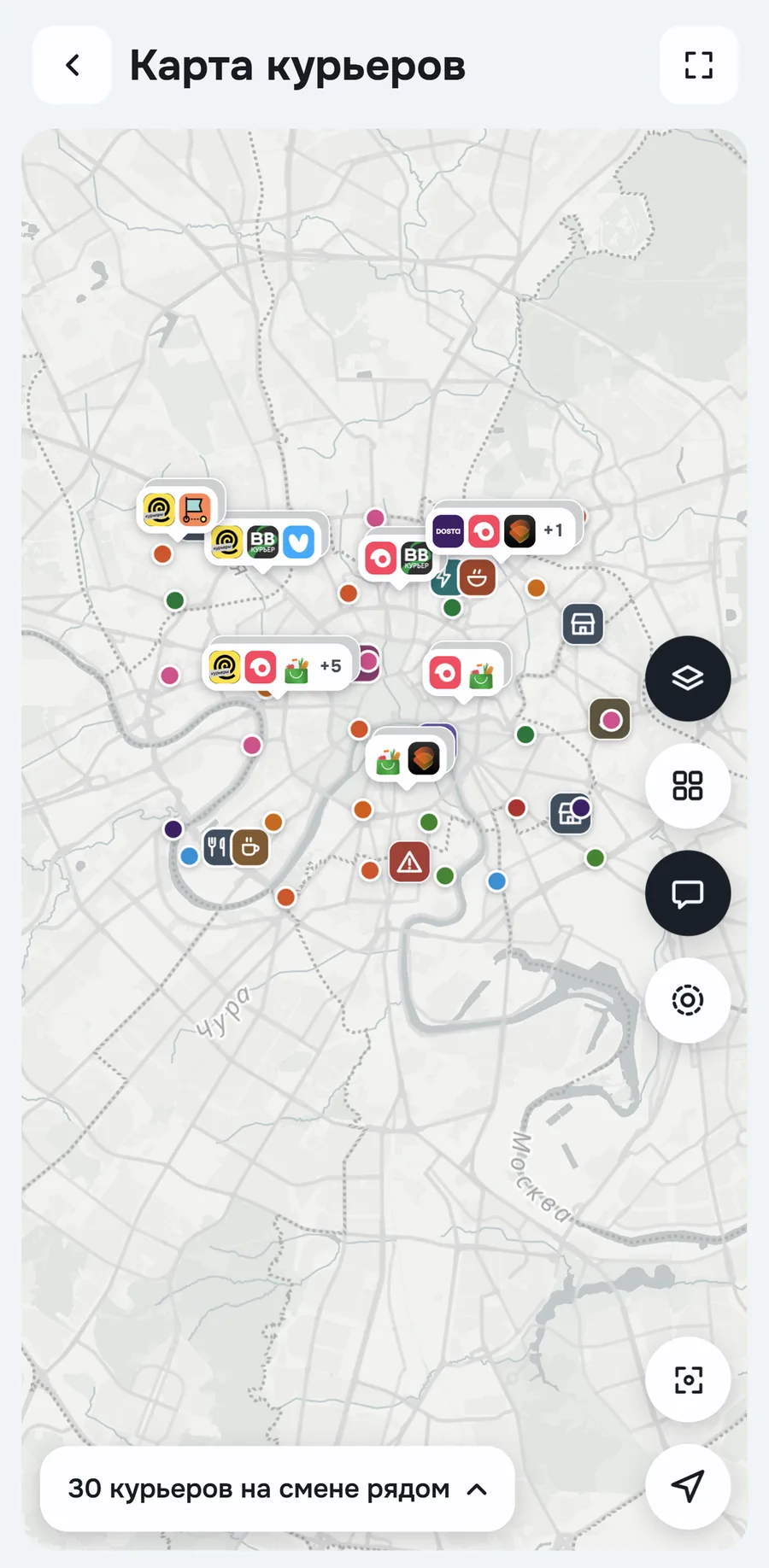
The courier map shows how many people are on shift nearby right now and in which services. The color and icon of a dot is the courier's service
The map also has places marked by couriers: to warm up, charge your phone, eat, fix your bike. Tapping a place opens reviews and directions. Courier dots are approximate and without names. You show yourself on the map only if you turned it on
News from couriers in your city
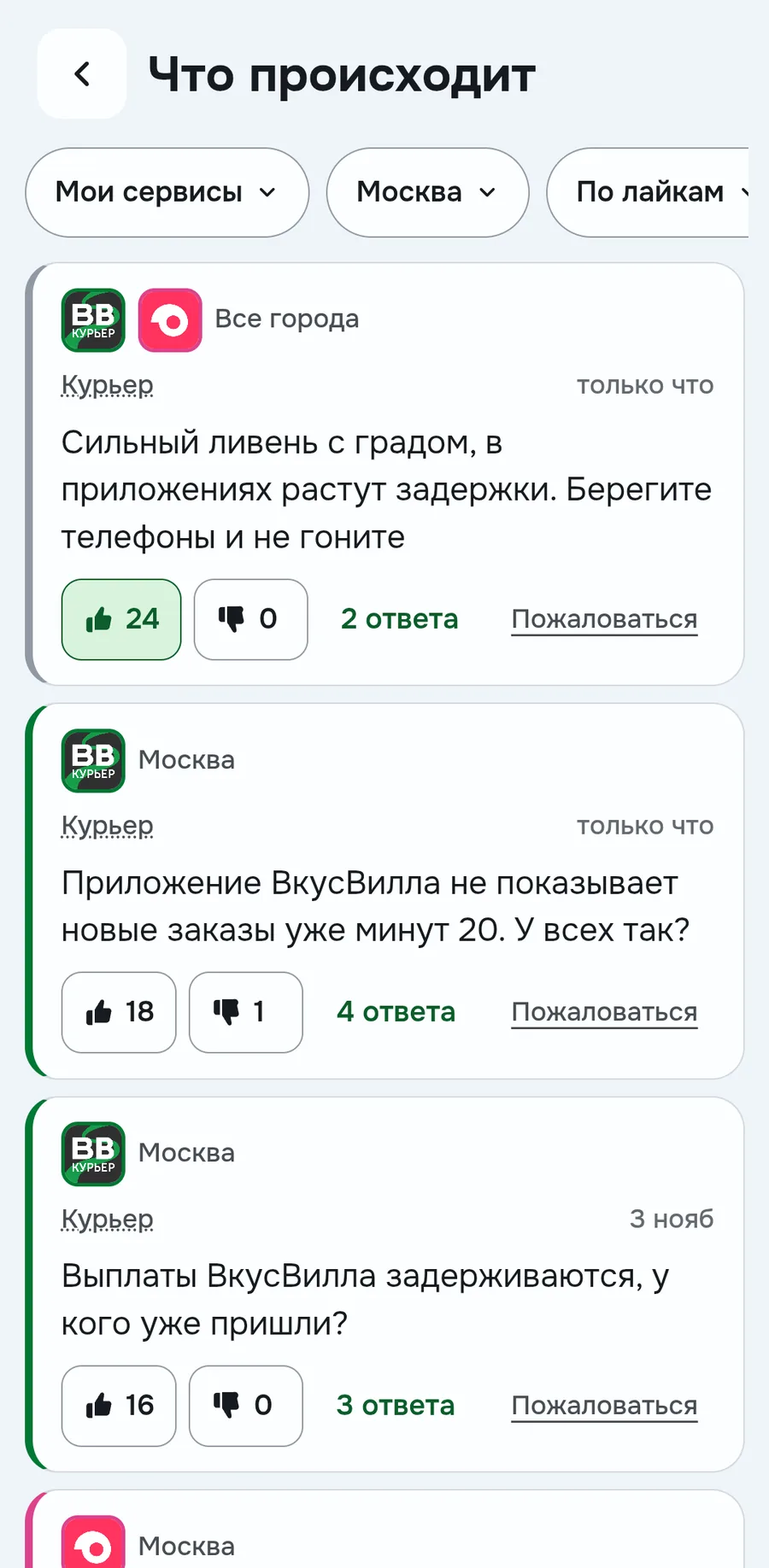
You learn about a blocked street or a queue at pickup before you run into it. At the bottom of the tab there's the latest message from couriers in your city. Tapping opens the discussion, All messages opens the whole feed. Authors appear under nicknames, see public profile
Below, a mini map with the number of couriers on shift nearby. Tapping opens the Courier map
Demo mode
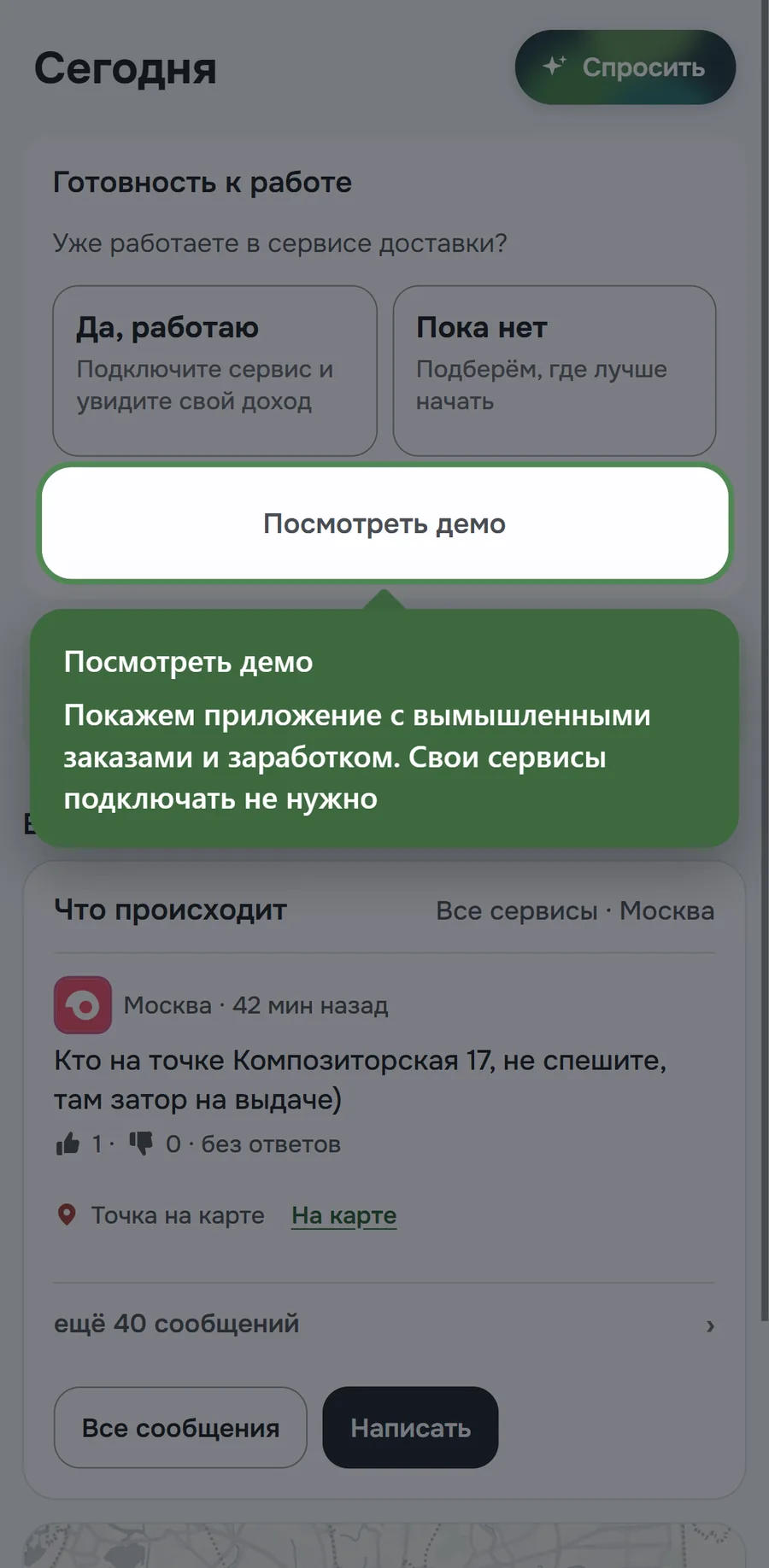
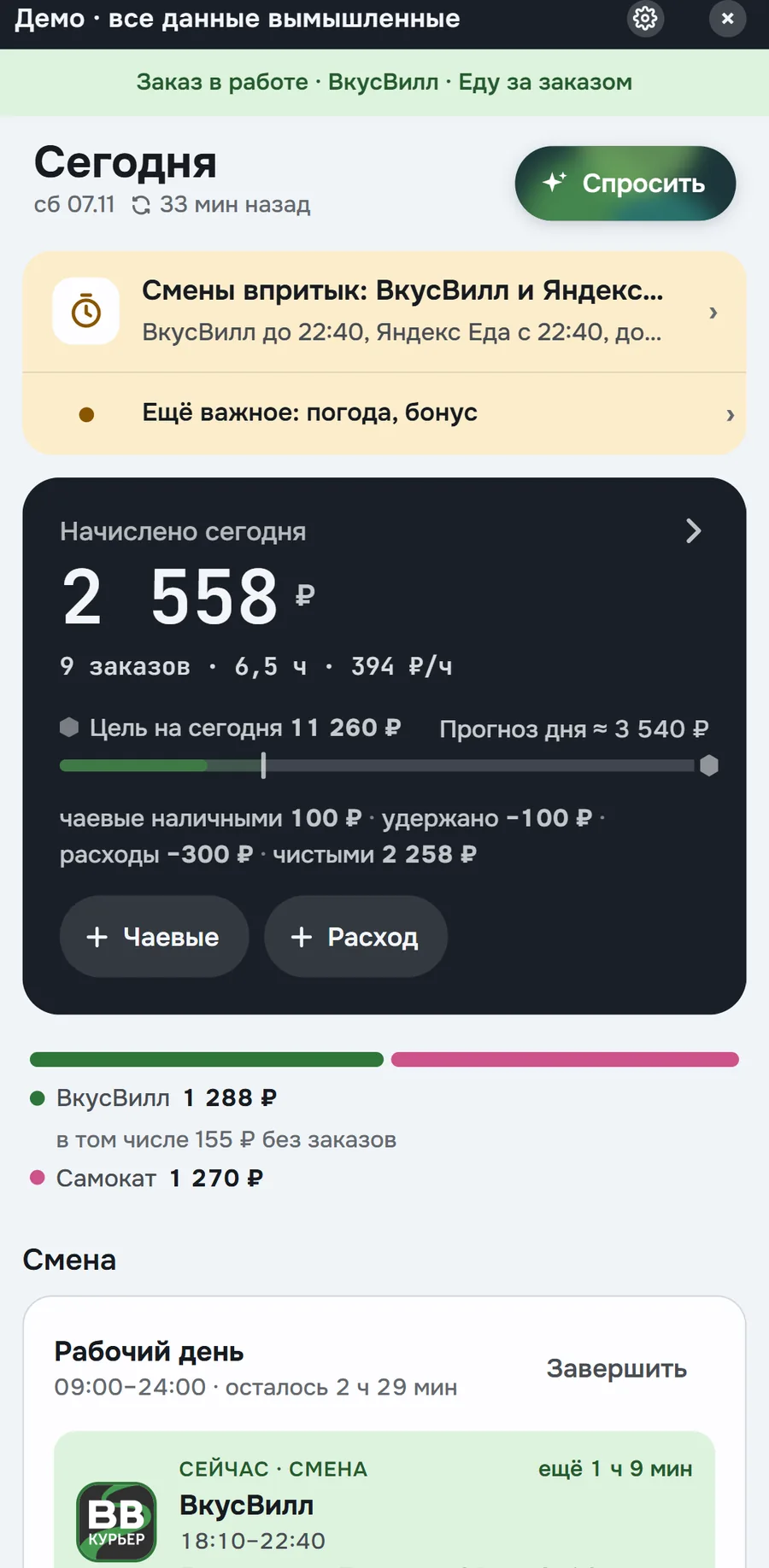
The demo shows all screens with fictional data even before you connect services. While no service is connected, the tab shows the Ready to work card: Yes, I work leads to connecting a service, Not yet to finding a job. Market, the What's happening feed and the map are available right away
View demo fills in the day, shifts, payouts, Plan and Results. While the demo is on, there's a dark Demo · all data is fictional banner on top. The cross on it takes you back to your data
How the numbers are calculated
- Accrued today
- the amount the services accrued for orders, shifts and bonuses for the day, before deductions and expenses. Tips paid through the service are already included
- Hourly income
- accrued divided by hours online: 600 ₽ for 2 h gives 300 ₽/h. Counted before expenses, so you can compare with other couriers
- Net
- accrued plus cash tips, minus Deducted and expenses
- Daily goal
- the part of the weekly goal for today. What's left of the weekly goal is split across the remaining workdays by their hours
- By the end of the day
- roughly how much you'll make by evening, counting the remaining bookings and plan windows. The ≈ sign means a forecast
- Awaiting payout
- the amount the service accrued but hasn't paid out yet
Where the data comes from and what others see
Orders, amounts, bookings and payouts come from connected services. How the data works and what others see, see Where the data comes from. Under the title you see when the data was updated. Tapping shows which services are online
Only you see amounts, expenses, tips and notes. By default you're anonymous, see public profile
FAQ
Why Accrued today doesn't match what landed on my card
Accrued is what the services accrued for the day's orders. Money arrives on each service's payout schedule, the rest is shown in the Awaiting payout line
Can I close a shift or cancel a booking from Raznos
No. Shifts and bookings can only be changed in the service's app
Do others see my tips and notes
No, only you see them. You can share an address note with the Share with everyone checkbox, your personal note stays
Why the Recent orders block shows yesterday's orders
There were no orders today yet, so the block shows the last workday with the date in the title
Numbers on the screens are examples, the app will show yours